
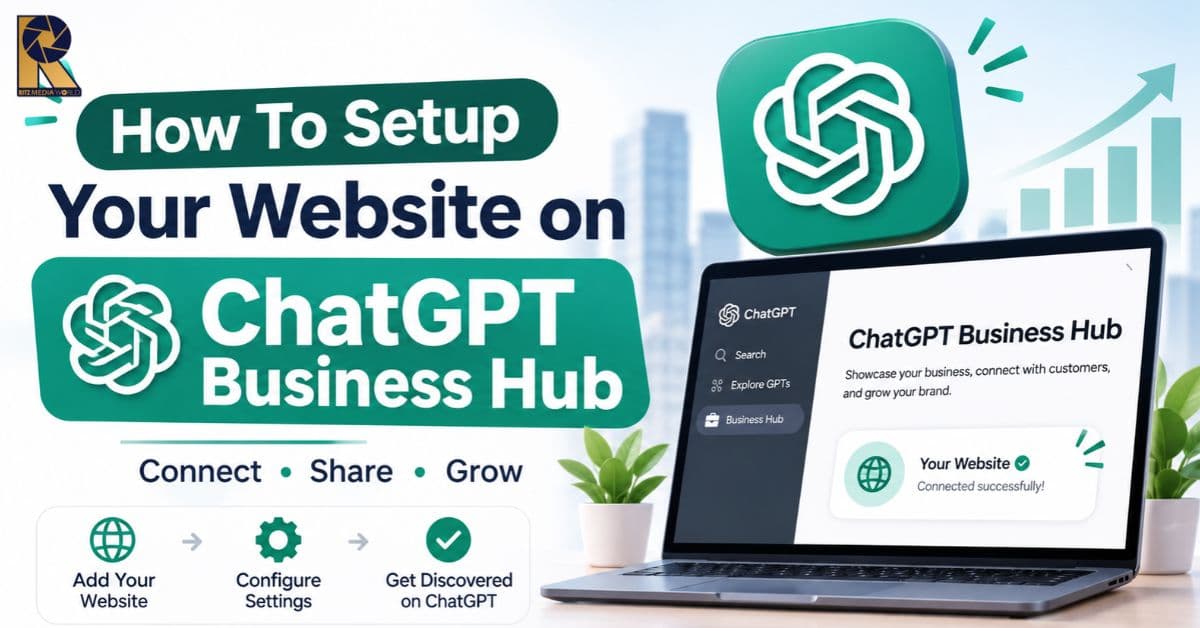
How To Setup Your Website on ChatGPT Business Hub (Step-by-Step Guide for 2026)
Key Takeaway (Summary)
- ChatGPT Business Hub is the dashboard where a business claims its ChatGPT profile, keeps its details accurate, and measures how it appears in ChatGPT. OpenAI announced it in beta on November 10, 2026, under the name "Businesses in ChatGPT".
- Quick answer: sign in to ChatGPT, open chatgpt.com/business-hub, search for your business, claim the listing, verify it (phone, business email, website domain or Shopify), pass the identity check, then complete your profile.
- What you need: a ChatGPT account (the free plan works), a website you control, access to one verification method, and an ID plus business registration details for the identity check.
- Why it matters: accurate, verified information helps ChatGPT represent your brand correctly, and the Insights section shows mentions, website clicks and topics you appear in.
What Is ChatGPT Business Hub?
ChatGPT Business Hub is a free dashboard inside ChatGPT where verified business owners claim their brand profile, edit business details, and view performance insights.
Think of it as the AI-era equivalent of claiming your Google Business Profile. When people ask ChatGPT about a brand, a product or a service, ChatGPT needs reliable information. Business Hub lets you supply that information directly instead of leaving ChatGPT to guess from scattered web pages.
For SEO professionals and business owners, this is a new layer of AI search visibility and a practical entry point into generative engine optimization (GEO) and answer engine optimization (AEO).
Why Should You Set Up Your Website on ChatGPT Business Hub?
Because ChatGPT is now a discovery channel, and a verified profile gives you control over what it says about your business.
Key benefits:
- Correct business details: fix the website, description, category, logo, delivery policy and return policy.
- Trust signal: verified businesses receive a verification badge.
- Performance data: Insights show brand mentions, website clicks and discovery topics for the past 28 days, in aggregate and without individual prompts.
- Commerce readiness: product feeds and, for Shopify merchants, a Business Agent option.
- Early-mover advantage: the program is in beta, so few competitors have claimed profiles yet.
What Do You Need Before Starting?
You need four things: a ChatGPT account, a website, a verification route, and identity documents.
Requirement | Details |
ChatGPT account | Use the account that will manage the business. The free plan works. |
Business website | A website is required to claim or create a listing at launch. |
Verification access | Business phone (SMS or call), business email, DNS access for your domain, or a Shopify store login. Only methods that apply to you are shown. |
Identity documents | Government ID of an authorized person, business registration details and proof you can represent the business. |
Brand assets | Logo, cover photo, business description, delivery and return policies. |
No Ads account and no Enterprise contract is required.
How Do You Set Up Your Website on ChatGPT Business Hub?
Follow these seven steps. Claiming and verification usually take a few minutes; OpenAI's approval and identity check may take longer.
Step 1: How do I open ChatGPT Business Hub?
Sign in to ChatGPT with the account that will manage the business. Select Business Hub in the sidebar, or go directly to chatgpt.com/business-hub. You can also start from OpenAI's "Businesses in ChatGPT" page and click Claim your business.
Step 2: How do I find my business listing?
Type your business name in the search box. If ChatGPT already holds a listing, check the website domain shown to make sure you pick the correct one, then choose Claim profile.
If nothing appears and you are an eligible online business, an option to create a new listing may be offered.
Step 3: How do I add my website?
ChatGPT asks how customers usually reach you: at a physical location or through a website. At launch, the physical location route did not appear to accept claims yet, so choose a website even if you also run shops or offices. Enter your full URL (for example, https://www.yourbrand.com) and click Continue.
Step 4: How do I verify my website or business?
ChatGPT offers up to four verification methods:
- Business phone: receive a code by SMS or call.
- Business email: receive a code by email.
- Website domain (DNS TXT record): add a record to your DNS and return to click Verify domain.
- Shopify connection: log in to your Shopify store.
How do I verify with a DNS TXT record?
- Log in to your domain registrar or DNS host (GoDaddy, Hostinger, Namecheap, Cloudflare and so on).
- Open the DNS management page and add a new record.
- Set Type to TXT.
- Copy the Name/Host and Value exactly as ChatGPT shows them. The value begins with openai-business-profile= followed by your unique code.
- Save the record, return to Business Hub and select Verify domain.
Tip: DNS changes can take from a few minutes to several hours to propagate. If verification fails, wait and try again before changing anything.
Step 5: What happens after I submit the claim?
OpenAI reviews the claim. While it is under review you can choose to cancel. Once approved, you complete an identity check through Persona. Keep your government ID and business registration details ready. When both the claim and the identity check are approved, the Business tab opens in Business Hub.
Step 6: How do I complete my ChatGPT business profile?
Open your business in the Business tab and update:
- Website URL
- Business description (what you offer, who you serve, where)
- Business category
- Logo and cover photo
- Delivery policy and return policy
- Contact details (phone, business email, website)
Pro tip: match your profile to your website exactly. If you change a policy on your site, such as extended holiday returns, update your ChatGPT profile at the same time. Mismatched information weakens trust.
Step 7: How do I add products and invite teammates?
- Products: in the Products section you can add a product feed and review upload history and issues. A feed does not guarantee ChatGPT will recommend your products.
- Shopify merchants: connect your store from the Shopify admin or from Business Hub, then finish the Persona check to set up a Business Agent.
- Teammates: invite colleagues who need to manage the profile. Remember that invitations can depend on which ChatGPT account manages the business.
How Do You Track Performance in ChatGPT Business Hub?
Use the Insights section, which reports brand mentions, website clicks and topics for the past 28 days.
The data is aggregated, so you will not see individual user prompts. For SEO reporting, track these monthly:
- How often ChatGPT mentions your brand
- How many people click through to your website
- Which topics trigger your brand
- Changes after you update your profile, content or product feed
Compare the trends with your Google Analytics 4 referral data and Search Console performance to understand how AI visibility relates to organic traffic.
How Do You Optimize Your Business for ChatGPT Beyond Setup?
Verification is the foundation. Visibility comes from clear, consistent and well-structured information across your site.
- Keep NAP and policy data consistent: name, address, phone, return and delivery policies must match your site, Google Business Profile and directories.
- Write question-style headings with direct answers: answer the question in the first sentence under each heading, then expand. This is how both featured snippets and AI answers tend to be pulled.
- Add structured data: use Organization, LocalBusiness, Product and FAQPage schema.
- Build an About page and a clear service page: state what you do, where, and for whom.
- Strengthen E-E-A-T: author bios, case studies, certifications and genuine reviews.
- Maintain a clean product feed: accurate price, availability and descriptions for e-commerce brands.
- Allow crawling: make sure your robots.txt and firewall settings do not block legitimate crawlers you want to reach you.
- Earn mentions: citations in credible publications and industry sites reinforce your brand as an entity.
Common Mistakes to Avoid
- Claiming the wrong listing because two businesses share a name. Always check the domain.
- Using a personal ChatGPT account when a company-owned account should manage the profile.
- Entering policies that differ from your website.
- Giving up after a failed DNS verification. Propagation delays are common.
- Expecting instant rankings. Business Hub gives control and data, not guaranteed recommendations.
- Ignoring the identity check. The Business tab does not fully open until approval is complete.
Frequently Asked Questions
Is ChatGPT Business Hub free?
As far as OpenAI's published pages show, claiming a profile is free. You do not need an Ads account or an Enterprise agreement.
Do I need a website to add my business to ChatGPT?
Yes. At launch, setup asks for a website and a verification route, so you need a site you control.
How long does ChatGPT Business Hub setup take?
Claiming and verification take a few minutes. OpenAI's review and the Persona identity check add extra time, and DNS propagation can add more.
Can I use a free ChatGPT account?
Yes, the free plan works. Sign in with the account that will manage the business.
Which verification methods are available?
Business phone, business email, website domain (DNS TXT record) and Shopify. You only see the methods that apply to your business.
What can I edit after my business is verified?
Website, business description, category, logo, cover photo, delivery policy, return policy and other optional details.
Does Business Hub guarantee that ChatGPT will recommend my business?
No. It gives you accurate information control and performance insights, but recommendations still depend on relevance and quality signals.
Can I see which prompts mention my business?
No. Insights are aggregated and show mentions, clicks and topics, not individual prompts.
Is ChatGPT Business Hub the same as ChatGPT Business or Instant Checkout?
No. ChatGPT Business is a workspace plan, and Instant Checkout is a shopping feature that lets users buy inside ChatGPT. Business Hub is the profile and insights dashboard for brands. Product feeds in Business Hub can connect to ChatGPT's shopping experience.
Final Thoughts
Setting up your website on ChatGPT Business Hub takes only a few minutes of effort for a meaningful gain: verified, accurate and measurable presence inside one of the world's most-used AI tools. Claim your profile now, keep it synchronized with your website, and use the Insights data to guide your GEO and AEO strategy.
Need help with ChatGPT Business Hub setup or AI search optimization? Contact our team for a free audit.
Sources & further reading